
Tabla de contenidos
There are many tools that can help us to have control over the optimal functioning of our online store, as it requires constant maintenance in many dimensions. For example, to avoid attacks, to control the site’s speed, to moderate our users’ comments, to control page errors… and many other variables. Today, we are going to talk about Google Search Console, and we will tell you how you can install it in your e-commerce. It’s easy!
What is Google Search Console and how can it help you?
Google Search Console is a free tool from Google. which helps you monitor your site’s performance on several levels and helps you understand how Google users and the search engine itself are understanding your page, as it helps you provides data related to indexability, crawlability, web relevance and even popularity.. A complete tool, complete, wow. You can use Search Console for both websites and mobile applications.
Useful Google Search Console indicators for your online store
Now we will explain some indicators that can be useful to keep your online store in optimal conditions, since there are a lot of interesting data that you can observe with this tool. Here we go:
Clicks, impressions and positions
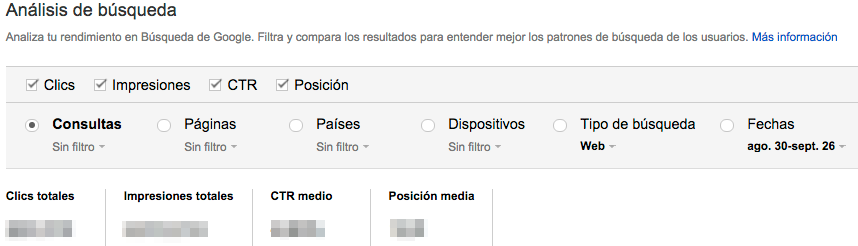
This information can be found in the Search traffic menu > Search analysis
This is one of the most interesting menus of the tool. Do you want to know for which queries your site appears in Google? What queries do users click on? And in what average position does your online store appear for certain searches? From this section you will be able to find out all this. The data covers a period of the last three months, and you can extract data for mobile searches, desktop searches or tablet searches. It also allows you to filter according to different countries or according to the destination page. And all these data can be obtained separately or cross-referenced according to your objective.
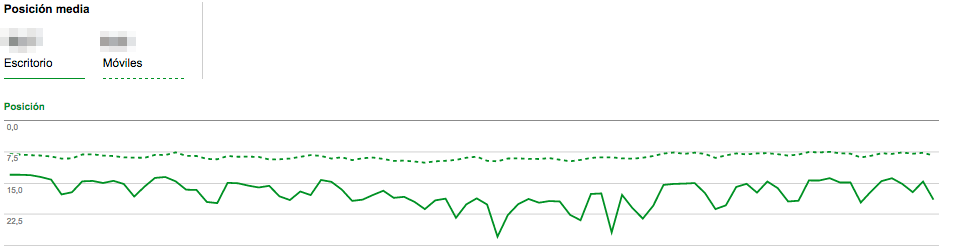
For example, one piece of information that might interest you is to compare how we are positioned according to different devices. Does my site work as well for searches from mobile devices as it does from the web? Oops! Surprise: we are better positioned for mobile searches.
Sites linking to my website
You will find this information in the Search Traffic menu > Links to your site
If you want to know what other websites are linking to your site, this is your section. You will get a list limited to a maximum of 1,000 domains that link to your site. You will be able to know how many links they provide, from which pages they don’t and to which pages of your site.
Indexing status
You will find this information in the Google Index menu > Indexing Status
This indicator is vital to take the pulse of indexing. It is taken weekly and you should be clear about how many pages your site has approximately so that you can interpret the evolution of the graph. All this may depend, for example, on whether you have more or fewer articles on your blog or more products in your online store. Once we have an idea of how many pages my site has, several things can happen:
- The graph registers a figure that roughly matches the number of pages on my site: everything is going well.
- The graph registers a figure that is well above the pages of my site: somehow we are generating duplicate content or pages are being indexed that should not be indexed.
- The graph registers a figure that is well below the pages of my site: Google is not indexing all of our content and it is in our best interest to find out what content is not being indexed and why.
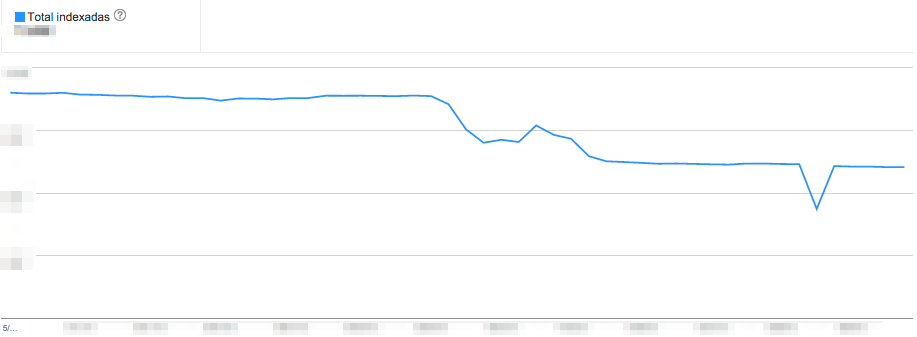
It is also important to observe whether there are abnormal peaks or troughs.
Tracking errors
You will find this information in the Tracing menu > Tracing errors
In this menu you will find information about the errors that Google registers when trying to access your site, and they can be of several types: server errors or 404 errors. We must make sure that it is not a graph that shows ascents, and take into consideration each of the errors that it offers us. But these errors will not always be signs that we are doing something wrong. For example, we stop selling a product line and remove it from our store. At that point it would be logical for the page to return 404 or 410: a product no longer exists and Google understands this. However, it would be much better if we redirected this entire product line to a similar category for several reasons that we will explain in another post.
When we consciously remove products or delete pages, it is very important that we also remember to remove the links pointing to them on our site.
Tracking statistics
You will find this information in the Tracing menu > Tracing statistics
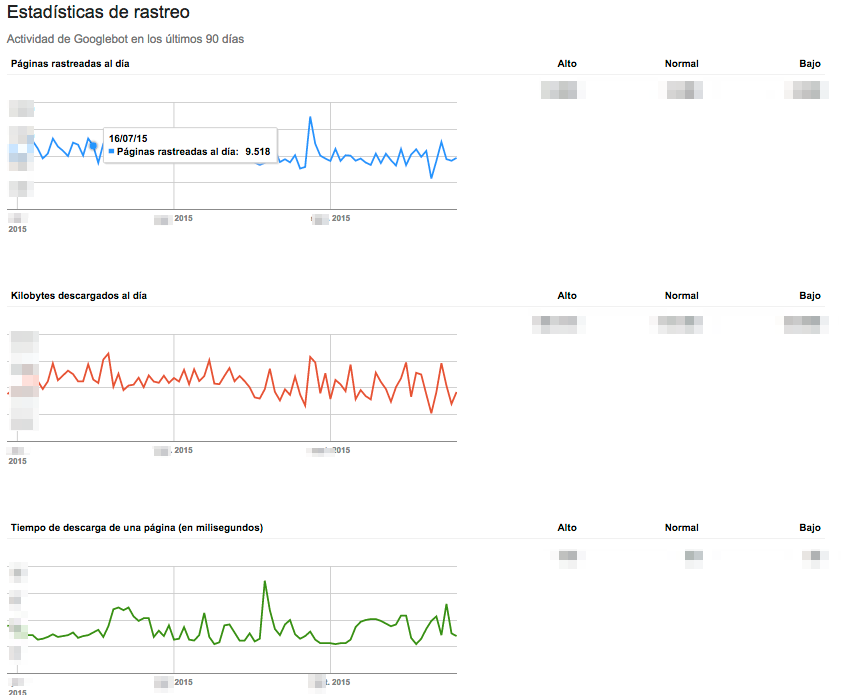
In this section we will find data about Google’s activity on our website in the last 90 days: pages crawled per day, kilobytes downloaded and time to download a page. We should watch for prolonged or steep rises or falls in these graphs because it could mean that Google is having trouble crawling and indexing your site.
Configuring Google Search Console in your online store
Just like setting up Google Analytics, you will find it surprisingly easy to set up Google Search Console in your online store.
First step: create your Google account
If you don’t already have a Google (or Gmail) account, it’s time to create one. Once you have it, you must go to the Google Search Console tool and log in.
Second step: add your property (web) to Search Console
Once logged in, the tool will ask you to add a website. Click on the “Add property now” button and a box will appear where you will have to enter your web address. After doing so, click on continue.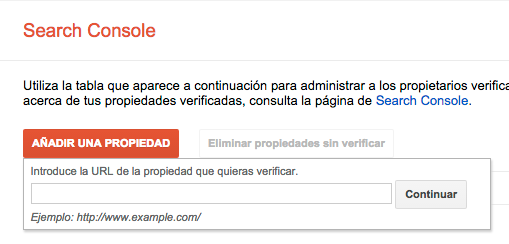
Third step: verify the property from your e-commerce platform
After completing the second step, the tool will ask us to verify that we are the owners of this website. There are several methods to do this, the most common of which are:
- Through the Google Analytics footprint, if we already have it installed. This is the simplest method and does not require programming knowledge.
- With an HTML meta tag that must be inserted in the source code.
- Uploading an HTML file to our website.
Depending on the platform or content management system we use, the second and third options may be more or less complex, as we may have to ask our webmaster for help or do our own research.
In any aspect of business, without facts and figures we are doomed to take the helm of the ship blindfolded. Navigating blindly will inevitably lead us to drift sooner or later. So do not hesitate and rely on web analytics tools to take the helm of your business.
Reference links
Google Search Console Help Guide